
Getting Started with Tuziyo: The Ultimate Guide to Private AI Image Tools
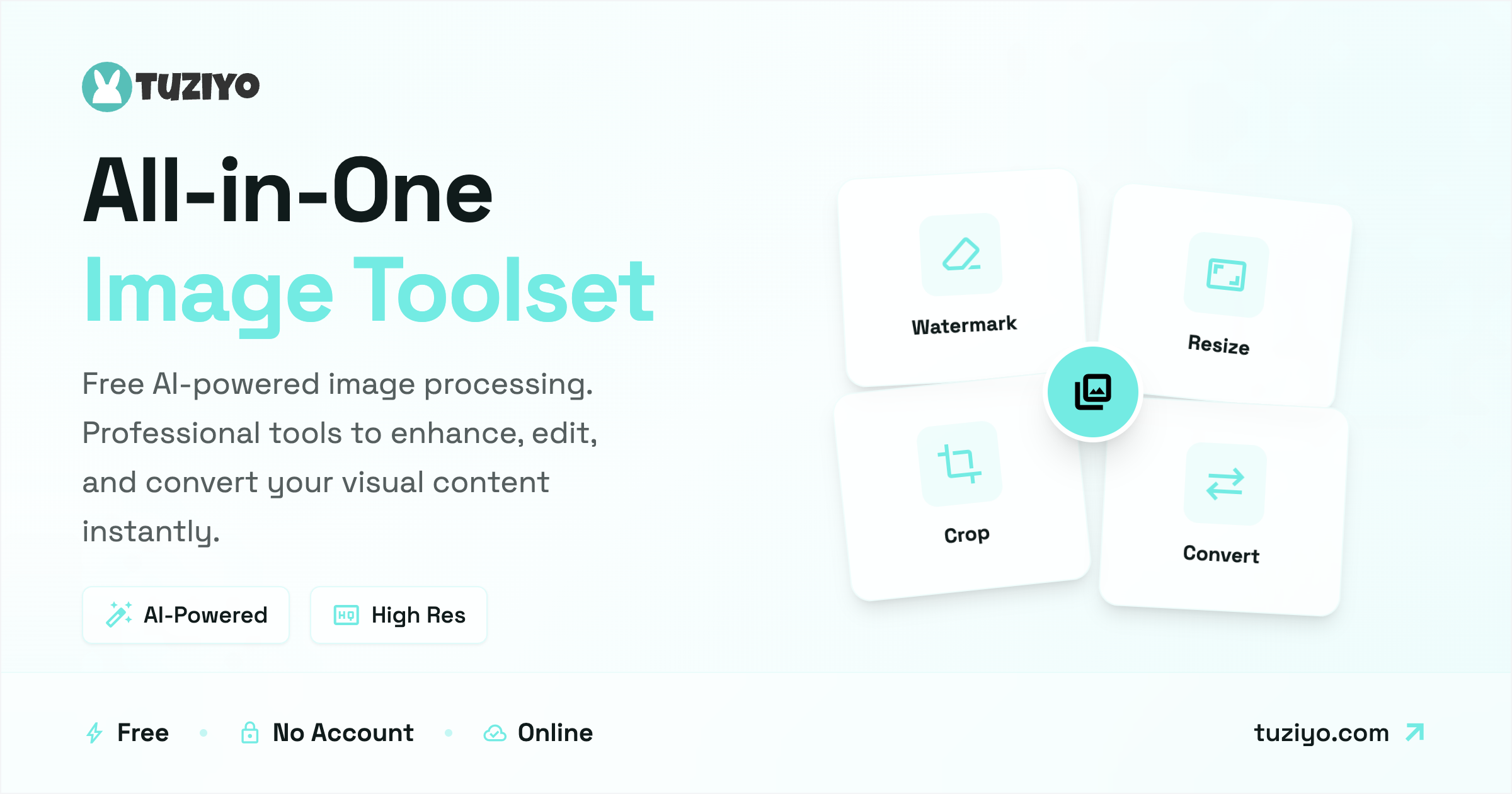
Learn how to use Tuziyo's powerful suite of local AI tools. From removing unwanted objects with AI Inpainting to batch resizing and format conversion—all 100% private and free.
Welcome to Tuziyo, your new go-to destination for fast, secure, and intelligent image editing. In a world where online privacy is scarce, we built Tuziyo with a single promise: Your photos never leave your device.
Whether you’re a content creator, a developer, or just someone looking to fix up a family photo, Tuziyo offers a suite of professional-grade tools right in your browser.
Here is a complete guide to what you can do with Tuziyo.
1. AI Inpainting: The Magic Eraser
Have a perfect shot ruined by a photobomber, a stray trash can, or a watermark? Our AI Inpainting tool uses advanced machine learning models (running locally in your browser!) to seamlessly remove unwanted elements.
How to use it:
- Navigate to the Inpainting tool.
- Upload your image.
- Use the Brush tool to paint over the object you want to remove. You can adjust the brush size for precision.
- Click Remove. The AI will analyze the surrounding pixels and fill in the gap intelligently.
- Download your clean image.
2. Batch Format Converter
Stop struggling with incompatible file formats. Tuziyo’s Converter allows you to transform images between modern and classic formats in seconds.
Supported Formats:
- Inputs: HEIC, PNG, JPG, WEBP, AVIF
- Outputs: PNG, JPG, WEBP
How to use it:
- Go to the Convert page.
- Drag and drop one or multiple images.
- Select your desired Output Format (e.g., WebP for web performance, JPG for compatibility).
- Click Convert All. Since it processes locally, it’s lightning fast!
3. Smart Resize
Need to shrink photos for a website or email attachment? Our Resizer lets you scale images down (or up) while maintaining quality.
How to use it:
- Open the Resize tool.
- Upload your images.
- Choose your method:
- By Percentage: e.g., reduce to 50%.
- By Dimensions: Set a specific Width or Height (aspect ratio is preserved automatically).
- Hit Size Image and download the optimized files.
4. Professional Crop
Get your images ready for Instagram, X (Twitter), or your blog header with precise cropping tools.
How to use it:
- Head to the Crop tool.
- Upload a photo.
- Choose a Preset Ratio (like 1:1 Square, 16:9 Landscape) or drag the handles for a Freestyle crop.
- Confirm and download.
Why Choose Tuziyo?
🔒 Privacy First
Most online tools upload your photos to a cloud server to process them. This poses a privacy risk. Tuziyo processes everything locally using WebAssembly and WebGPU technology. Your personal photos stay on your computer, always.
⚡ Blazing Speed
No uploading implies no waiting. Large files open instantly, and processing happens as fast as your device allows.
💸 100% Free
We believe essential tools should be accessible to everyone. No paywalls, no hidden fees.
Ready to enhance your workflow? Start editing with Tuziyo today!